How-To
How to Black Out Text in a PDF (Redaction)
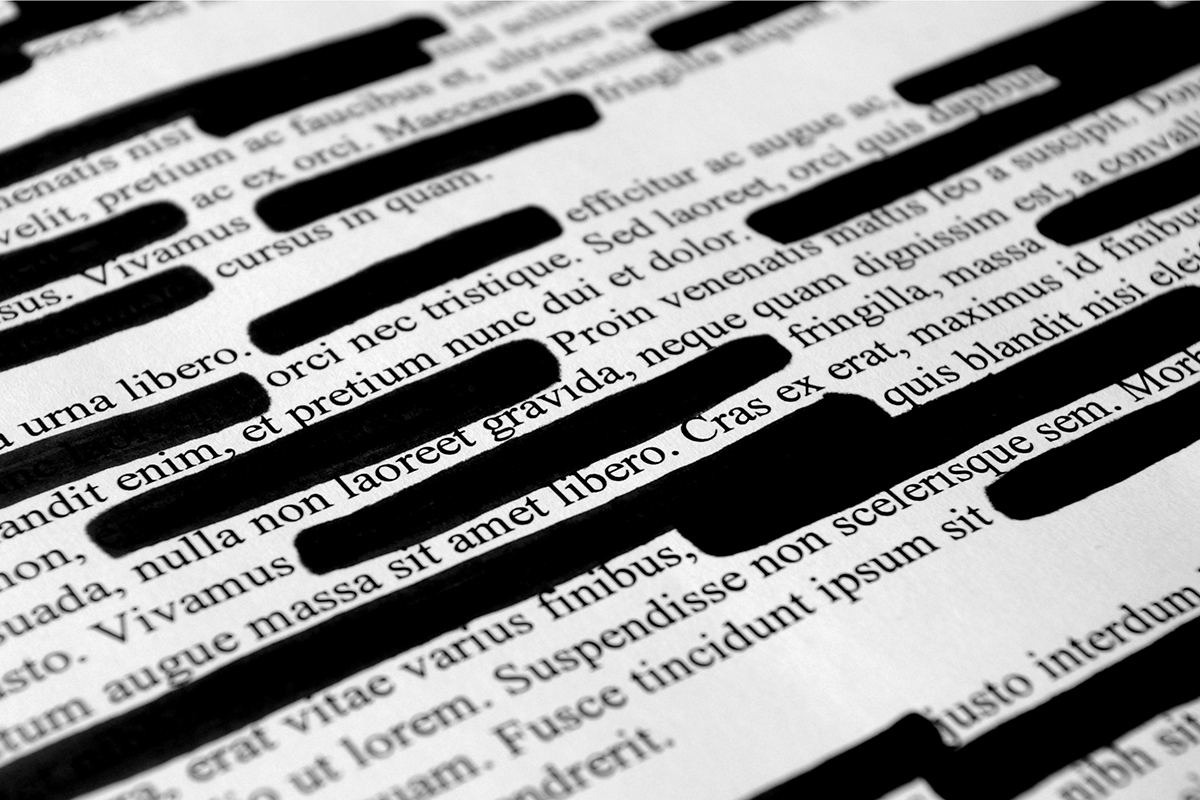
You need to share a contract but hide the bank details. A court filing with a name that has to stay private. A medical record with someone else's information on the same page. Blacking out text in a PDF sounds simple — draw a black box over it and move on. But most of the time, that black box is a lie. The words are still sitting underneath it inside the file, and anyone who knows where to look can pull them straight back out. Real redaction removes the text entirely. Here is how to tell the difference — and how to do it properly, free, in your browser.
A black rectangle is not redaction
A PDF keeps its text as a separate layer from how the page looks. When you draw a black rectangle over a sentence — in a PDF editor, in Preview, with an annotation tool — you are only covering it up. The characters are still in the file, underneath the rectangle. Select all, copy, paste into a text file, and the supposedly hidden words appear. Open the PDF with a text extractor and they come out too.
This is not a theoretical risk. In 2019, a court filing in the Paul Manafort case made headlines for exactly this failure: passages blacked out with rectangles could be revealed by copying and pasting the text underneath. The rule is simple: if the text can still be selected, it is not redacted — it is just hidden from view.
How real redaction works
Real redaction deletes the characters from the file and paints black over where they were. After proper redaction there is nothing underneath to recover — no text layer, no hidden characters, nothing for a copy-paste to find.
There are two honest ways to get there: delete the text from the PDF's content and draw the bar in its place, or rebuild the whole page as a flat image with the black bars baked in — the words become pixels, not text. PDFZippy's Redact PDF tool uses the second method: it renders every matching page, paints black over every match, and saves the page as an image, so the hidden text is not in the output file. Pages without matches are left untouched, so the rest of your document keeps its original quality.
The trade-off is real: text on a redacted page is no longer selectable or searchable. That is the price of making it unrecoverable — and when privacy is the point, it is the right trade.
How to black out text in a PDF
Five steps, and your file never leaves your device:
- Open PDFZippy's Redact PDF tool.
- Drop in your PDF. The whole job runs in your browser — nothing is uploaded, so the sensitive file never goes to a server.
- Type the exact text to hide — a name, an email address, an account number, a date of birth. One phrase per run, up to 80 characters.
- Click the action button. The tool searches every page and blacks out every match, then gives you a _redacted.pdf file to download. The confirmation tells you how many matches were blacked out and on how many pages.
- Check the result before you share it (see below). If the tool says the text wasn't found, check your spelling first — the search matches the PDF's text layer, so a typo or a different spelling means no match.
Check your work before you share it
Never trust the black bars on sight. Open the downloaded file and try to defeat your own redaction: select all the text on a page and paste it into a plain text file — nothing sensitive should appear. Search the PDF for the name or number you hid — it should find zero matches. If anything shows up, the redaction did not take.
And remember that redaction only handles the visible text. A PDF also carries hidden metadata — the author's name, the document title, the creation date — which can give away who made the file. Run the redacted file through Remove PDF Metadata as well before you send anything sensitive.
What redaction can't fix
First, scanned PDFs: if the document is a photo or a scan, there is no text layer, so a text search finds nothing. Second, redaction does not lock the file: anyone can still open the redacted copy, so if it needs a password, protect it separately with Protect PDF. Third, the original still exists: keep your unredacted file somewhere safe and only ever send the redacted copy — and check the filename before you hit send. The download is named _redacted.pdf for exactly this reason.
Black out text in a PDF — free
Remove names, numbers and private details for good. Every match blacked out, nothing uploaded.
Open Redact PDF🔒 Files stay on your device — nothing is uploaded.
Frequently asked questions
Is drawing a black box over text enough to hide it?
No. If the text is still in the file's text layer, anyone can select, copy or extract it — the box only hides it from the eye. Real redaction removes the characters from the file, so there is nothing left to recover.
Can someone remove the black bars from a properly redacted PDF?
No. When the text has actually been removed — or the page rebuilt as a flat image with the bars baked in — there is nothing underneath to recover. The bars are part of the page, not a layer sitting on top of it.
Why didn't the tool find the text I typed?
Two usual reasons: a typo or a different spelling, since the search matches the PDF's text layer exactly; or the PDF is a scan with no text layer. Check the spelling first — and try copying the text out of the PDF yourself. If you can't select it, neither can the search.
Do I need to remove metadata after redacting?
Yes, if the file is sensitive. Redaction removes the visible text, but the PDF can still carry the author's name, the document title and the creation dates in its metadata. Run the redacted file through Remove PDF Metadata before sharing it.