Add Page Numbers
Add page numbers to your PDF.
Files
0 filesNo files added yet. Use the upload area below to add PDF files.
pt
Your file is ready. Click download to save the output. Processing time: 0.0s
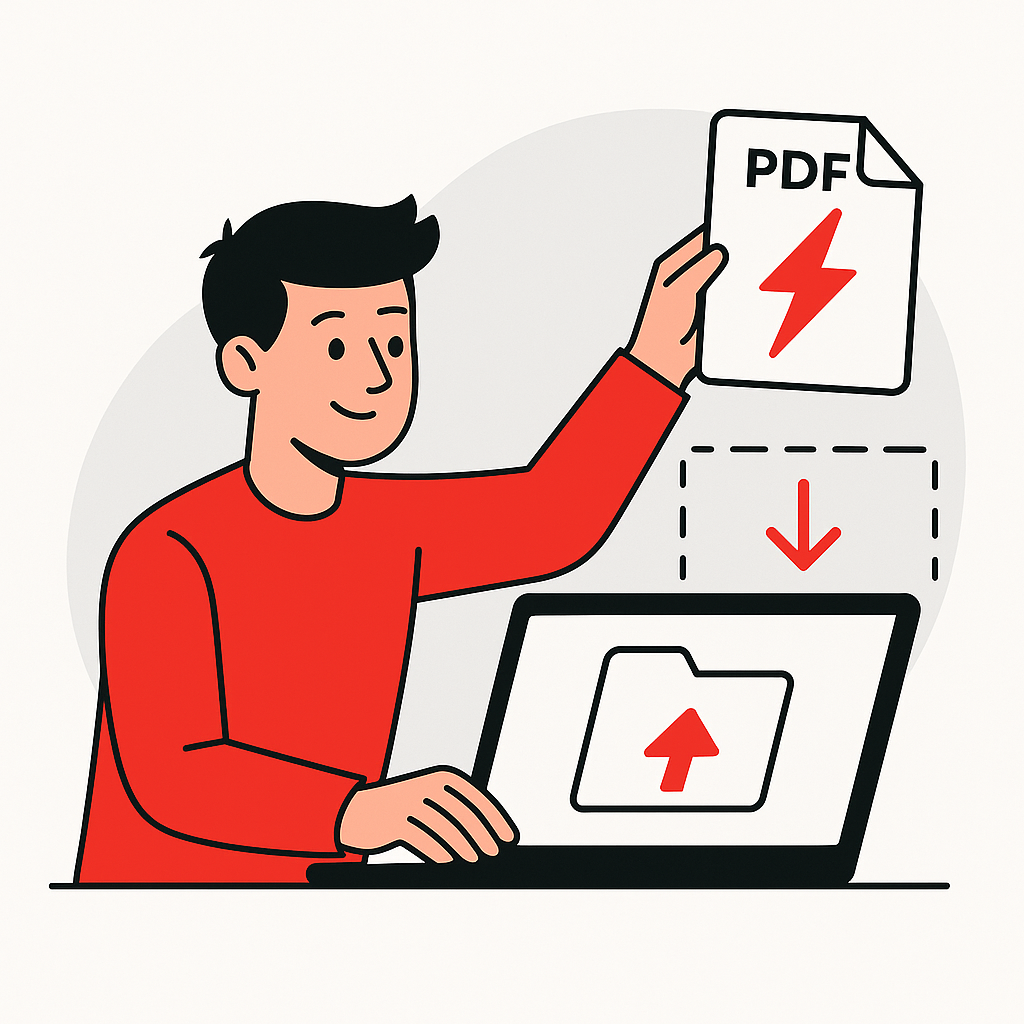
How to Add Page Numbers to PDF in 4 Steps
Add page numbers to your PDF documents for easy navigation.
1
Upload PDF
Select your PDF file.
2
Choose Style
Select numbering format.
3
Process
Add numbers instantly.
4
Download
Save numbered PDF.
About Adding Page Numbers to PDFs
What is Page Numbering?
Page numbering adds sequential numbers to PDF pages, helping readers navigate documents and reference specific pages. Customize position, format, starting number, and appearance to match your document style.
Why Add Page Numbers?
- Easy Navigation: Help readers find specific pages
- Professional Appearance: Polished document presentation
- Reference Citations: Enable accurate page references
- Document Organization: Clear page sequencing
Numbering Options
Flexible formatting choices:
- Number Format: Arabic, Roman, or custom formats
- Position Control: Header, footer, corner placement
- Starting Number: Begin from any number
- Style Options: Font, size, and color customization
Best Use Cases
Essential for reports, theses, manuals, books, legal documents, proposals, and any multi-page document requiring page reference capability.
Frequently Asked Questions
Yes! You can choose from numeric (1,2,3), Roman numerals (I,II,III), or letters (A,B,C). You can also add prefixes and suffixes like Page 1 of N.
Absolutely. Choose from 6 positions: top-left, top-center, top-right, bottom-left, bottom-center, or bottom-right to best suit your document layout.
Yes, you can adjust the font size (8-24pt), choose any text color, add borders, and even apply background colors to your page numbers.
Yes, you can set any starting number. This is useful when numbering document sections separately or continuing from a previous document.
Yes, you can specify which pages to number. For example, skip title pages or apply different numbering to different sections of your document.
No, adding page numbers is a non-destructive operation. Your original content quality remains unchanged, and page numbers are overlaid cleanly on each page.