Edit PDF
Edit text and images in your PDF.
File Management
0 filesNo files added yet. Use the upload area below to add PDF files.
Text Editor Options
Enter the text you want to add to the selected page.
pt
pt
Success! Your PDF has been edited.
Processing time: 0 seconds
Processing time: 0 seconds
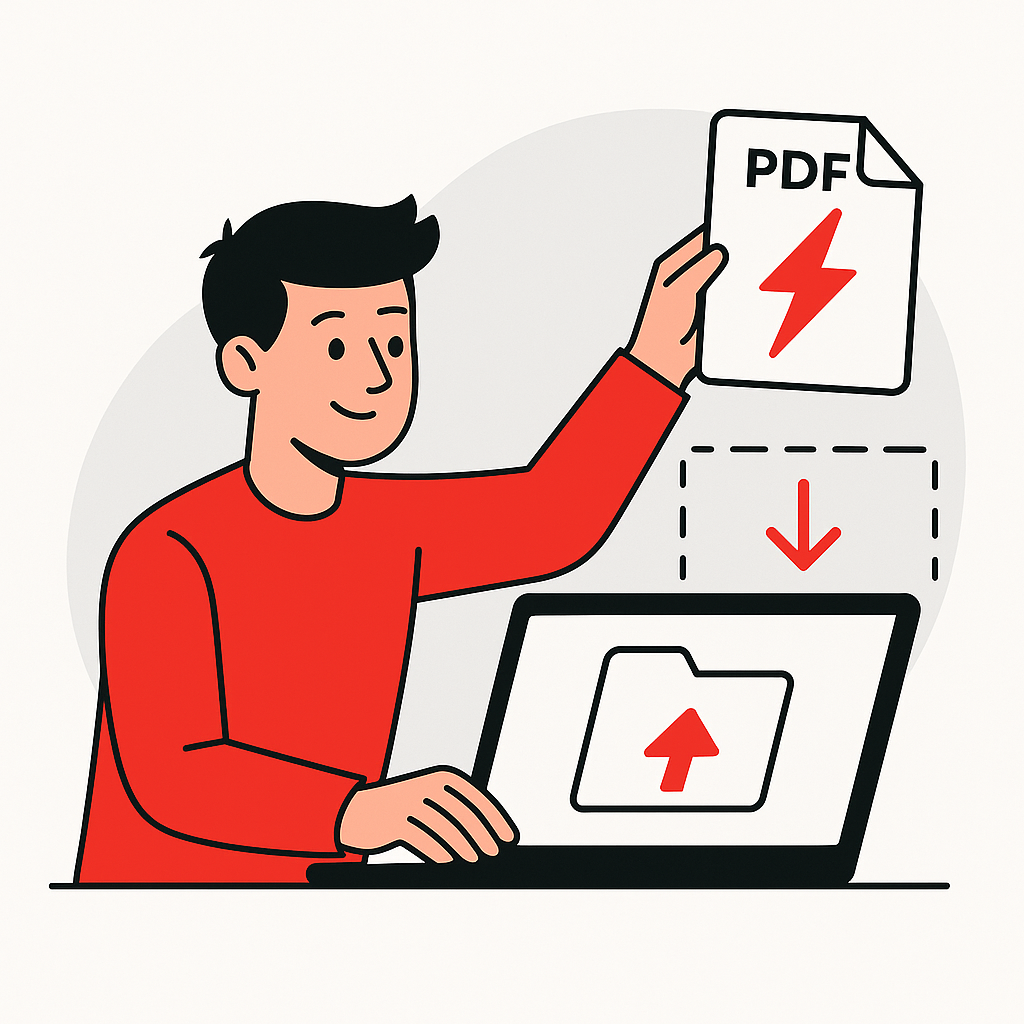
How to Edit PDF in 4 Steps
Make changes to your PDF documents easily.
1
Upload PDF
Select your PDF file.
2
Select Page
Choose which page to edit.
3
Add Text
Enter your text and settings.
4
Download
Save your edited PDF.
About Editing PDF Documents
What is PDF Editing?
PDF editing allows modification of text, images, and other elements within PDF documents. Add annotations, insert text boxes, draw shapes, highlight content, and make changes without recreating the entire document.
Why Edit PDFs?
- Update Content: Correct errors or add information
- Add Annotations: Comments and notes for collaboration
- Fill Forms: Complete fillable PDF forms
- Customize Documents: Personalize PDF content
Editing Features
Comprehensive editing tools:
- Text Editing: Add, modify, or remove text
- Image Insertion: Add pictures and graphics
- Drawing Tools: Shapes, lines, and annotations
- Highlighting: Mark important content
Common Applications
Ideal for form filling, document review, adding signatures, correcting typos, inserting stamps, and collaborative document editing.
Frequently Asked Questions
You can add text, insert images, draw shapes, add annotations, highlight text, and place stamps or signatures on your PDF documents.
No, the original content quality is preserved. New elements are added as overlays without degrading the existing text or images in your PDF.
Password-protected PDFs must first be unlocked using our Unlock PDF tool before editing. Once unlocked, you can make all desired changes.
Yes, our editor supports undo/redo functionality, allowing you to revert changes. However, once you download the edited PDF, changes are permanent.
You can edit PDF files up to 50MB in size. This accommodates most documents including those with images and complex formatting.
Editing is session-based. Make all your changes in one session, then download the final result. For complex edits, consider working in stages.